Posts mit dem Label setup werden angezeigt. Alle Posts anzeigen

Montag, 25. Januar 2016

xrandr-tui

So, you want to change your screen resolution?
Have added a new LCD to your laptop and want to switch the displays?

Depends on: (xorg -)xrandr, bash and TUI (0.9.4-5 or later) (Website, Download, Install)

Have a look at xrandr-tui, if you do not want to type in those commands:
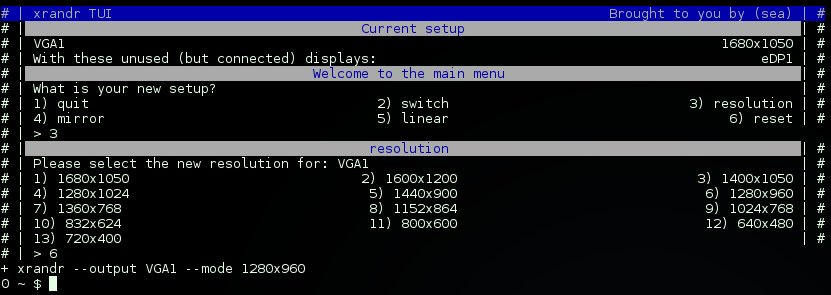
More functions are planned for the future, but first some optimizations for what currently is have to be applied.

It is meant for the use with WMs (Awesome, I3,dwm, etc) as it lets you set a base config, which will be used for:

xrandr-tui --switch
xrandr-tui --reset
xrandr-tui --mirror
Keep in mind, calling xrandr-tui by itself, will let you customize the task every time.
Whereas the quickaccess (arguments) will rely on the configuration file.
The screenshots you see here, are from xrandr-tui called without arguments.

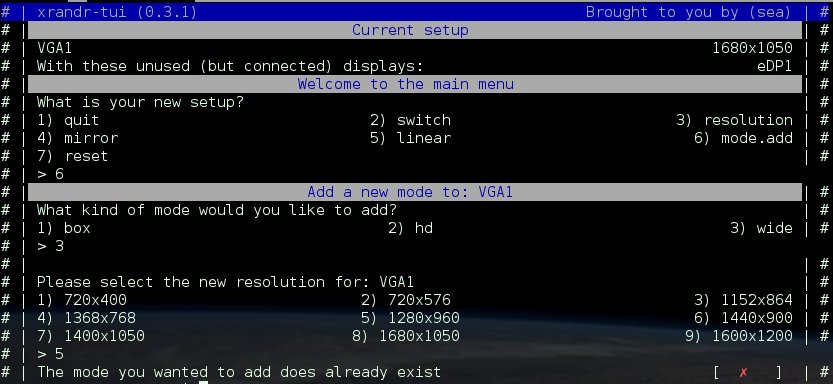
You can even add and remove new/old resolutons:
Links

Montag, 21. September 2015

YASSI 1.0.1 - Final release

I'm happy to announce the final release of YASSI.

YASSI does not need to be installed, unless you want to 'info yassi'.
The project name and version 'yassi'/1.0.1, and both lines with 'Report bugs...' are read from the configuration file,
and therefor will adjust to your project settings.
Not even 2 months ago I had started with this project, and it already provides all the functions i've wanted for it.While I initially started it for another project of mine where i needed to focus on the duty, i wanted to have it as its own project, to use with ther projects.

I do hope you helps you as much as it does for me.

What is YASSI again?

Yet Another Simple Script Installer

What is it for?

It requires a single file to provide all information for an installation custom to your needs,
while staying easy change-able by the end user.

Get it


Freitag, 30. Januar 2015

Howto: Connect BSD to WIFI spot

Heyas

So i've just installed FreeBSD on my computer.

Preparation:

So, to get started for WIFI, i first need to plug in a wire, and install some of the tools required to enable WIFI.

pkg install -y wpa_supplicant 

Once this is installed, lets remove the wire, so we can be sure the next internet connection will be using the WIFI.


Saving the WIFI config

Is quite simple, we're using the just installed wpa_password tool, passing the AP-Name and its password, and redirect the output to a file:

wpa_password APNAME PaSSwoRd >> /etc/wpa_supplicant.conf


Enable WIFI for startup

Basicly, you just need to get the device from the output of:

ifconfig | grep -B3 -i wireless

And save it to: /etc/rc.conf

wlans_ath0="wlan0"
ifconfig_wlan0="WPA SYNCDHCP"

Or you cold type this:

WLAN=`ifconfig | grep -B3 -i wireless | grep ^[ai]|awk '{print $1}'`

echo "wlans_${WLAN/:}=wlan0
ifconfig_wlan0=\"WPA SYNCDHCP\"" >> /etc/rc.conf


Enable WIFI


To get it right away:

service netif restart

Or simply reboot to verify everything worked well.

Sources:

https://www.freebsd.org/doc/handbook/network-wireless.html
http://www.wonkity.com/~wblock/docs/html/wireless.html